Public WiFi and Email: The Real Risks in 2026

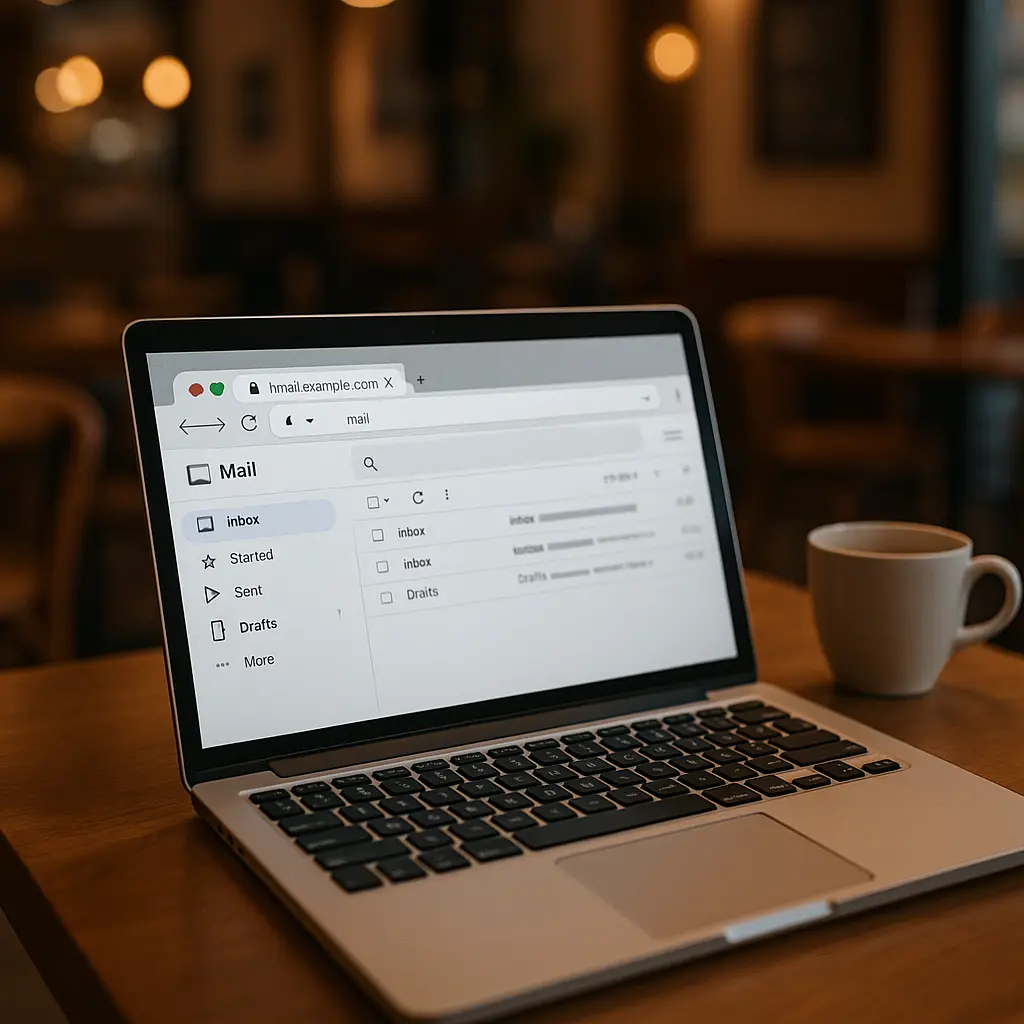
You're at a coffee shop. You need to check your email. Someone told you public WiFi is dangerous. You're not sure what that actually means or whether it still applies in 2026.
The short answer: checking email on public WiFi is mostly safe if you're using a major provider through a web browser or modern app. The encryption that protects your connection has become standard, the attacks that made headlines a decade ago require more effort than most attackers bother with, and the real risks have shifted to threats that exist regardless of which network you're on.
The longer answer requires looking at what actually happens when you connect to public WiFi, what changed between 2015 and 2026, and which specific scenarios still create exposure.
What Public WiFi Actually Exposes
When you connect to a public WiFi network at a coffee shop, airport, or library, your device joins a shared network. Other people on that network can see some of your traffic. Not all of it. Not automatically. But enough to create risk if certain conditions align.
Here's what someone on the same network can potentially observe without sophisticated tools:
Your device's MAC address and IP address are visible to anyone running basic network monitoring software. They can see which websites you're connecting to by watching DNS requests, the queries your device makes to translate domain names like gmail.com into IP addresses. They can see the volume and timing of your traffic, which creates patterns that reveal behavior even when content stays encrypted.
What they can't see, under normal circumstances: the content of your emails, your passwords, or anything transmitted inside an encrypted HTTPS connection.
The threat model that dominated security advice from 2008 to around 2015 assumed that most web traffic traveled unencrypted. An attacker on the same WiFi network could run a packet sniffer, capture everything you transmitted, and read it in plain text. Passwords, email content, session cookies, all visible.
That model is mostly obsolete. HTTPS became the default for major websites starting around 2014, accelerated by browser warnings for unencrypted login pages, and reached near-universal adoption among email providers, banks, and social platforms by 2020. In 2026, if you're checking Gmail, Outlook, Yahoo Mail, or ProtonMail through a web browser, your connection is encrypted from your device to the provider's servers. Someone on the same WiFi network sees encrypted packets. They see that you're connected to gmail.com, but they don't see your password, your email content, or your session token.
The encryption that protects you is called TLS (Transport Layer Security). It's the protocol behind the HTTPS in your browser's address bar. When you connect to an HTTPS site, your browser and the server negotiate an encrypted tunnel. Everything that passes through that tunnel is unreadable to anyone in between, including the person sitting three tables over running Wireshark.
Where the Old Threat Model Still Applies
Not every email connection uses HTTPS or modern encryption. Some scenarios still expose credentials or content on public WiFi:
Email apps configured to use older protocols without encryption. If you're using an email client configured with POP3 or IMAP without TLS, your username and password transmit in cleartext. This is rare in 2026, most email providers require TLS for incoming connections, and most email apps default to encrypted settings, but it's possible if you're using a legacy configuration or a work email system that hasn't been updated.
Custom work email configurations that bypass modern security. Some organizations run their own email servers with outdated configurations. If your work email client connects using unencrypted IMAP or SMTP, your credentials are exposed on any network. This is less common than it was five years ago, but it still exists in organizations that deprioritize IT infrastructure.
VPN connections that fail open. If you're using a VPN and it disconnects without warning, your traffic might revert to an unencrypted connection. Some VPN apps include a kill switch that blocks all traffic if the VPN drops, but not all apps enable this by default. If your email app tries to sync while the VPN is down, you might transmit credentials over an unprotected connection without realizing it.
Websites that still don't enforce HTTPS. In 2026, this is mostly limited to very old sites, personal blogs on outdated hosting, and some government or educational institution pages. If you're accessing webmail through a provider that doesn't enforce HTTPS, or if you're accessing a login page that uses HTTP and only switches to HTTPS after you submit credentials, your password is exposed.
Here's the practical test: before you log in to email on public WiFi, check the address bar. If you see https:// and a padlock icon, your connection is encrypted. If you see http:// or a warning about an insecure connection, don't log in. Use your phone's cellular connection instead.
The Threats That Actually Matter in 2026
The risks that remain on public WiFi aren't about passive eavesdropping. They're about active attacks that require more effort but deliver higher payoffs:
Evil twin networks. An attacker sets up a WiFi access point with a name that mimics the legitimate network. You connect to "Starbucks_Guest" thinking it's the coffee shop's WiFi, but it's actually a rogue access point controlled by someone nearby. Once you're connected, the attacker can intercept your traffic, serve you fake login pages, or redirect your connections.
This attack works because most devices automatically connect to networks with names they've seen before. If you've connected to "Starbucks_Guest" at a different location, your phone might auto-connect to a fake network with the same name. The attacker doesn't need to break encryption, they just need to trick you into connecting to their network instead of the real one.
Defense: disable auto-join for public networks, manually verify network names with staff, and check for HTTPS before entering credentials.
SSL stripping. An attacker on the network intercepts your connection and downgrades it from HTTPS to HTTP. You think you're on a secure connection, but the attacker has inserted themselves as a middleman. Your browser connects to the attacker over HTTP, and the attacker connects to the real website over HTTPS. You see the content, but the attacker sees everything you send.
This attack is harder to execute than it was in 2015. Modern browsers warn you aggressively when a site that should use HTTPS suddenly appears over HTTP. HSTS (HTTP Strict Transport Security) tells browsers to refuse unencrypted connections to specific domains, which prevents downgrade attacks against sites that have enabled it. Most major email providers use HSTS.
Defense: pay attention to browser warnings, never ignore certificate errors, and use a VPN if you're accessing email through an app that doesn't show connection security indicators.
Phishing through captive portals. Many public WiFi networks require you to accept terms or enter an email address before granting access. The captive portal, the page that appears when you first connect, is an opportunity for attackers. A fake captive portal can mimic the real one, collect your email address, or present a fake login page for a service you use.
This isn't a vulnerability in the network. It's social engineering. The attacker sets up a convincing-looking portal, you enter your credentials thinking you're logging in to unlock WiFi, and the attacker captures them.
Defense: never enter email passwords on captive portals. If a portal asks for your Gmail password to grant WiFi access, it's fake. Real captive portals ask for agreement to terms, an email address for marketing, or a room number, not passwords for external services.
When a VPN Actually Helps
A VPN encrypts all your traffic before it leaves your device and routes it through a server you control (or a server run by your VPN provider). On public WiFi, a VPN prevents anyone on the local network from seeing which sites you're visiting, what you're doing, or any unencrypted traffic your device might send.
For email accessed through HTTPS, a VPN adds minimal security benefit. Your connection is already encrypted. The VPN adds a second layer of encryption, but the first layer already protects your credentials and content from local eavesdropping.
Where a VPN helps:
- Email apps using protocols you can't verify. If you're not sure whether your email app uses TLS, a VPN ensures your credentials stay encrypted even if the app's connection isn't.
- Work email with unknown configurations. If your employer manages your email client and you don't know what protocols it uses, a VPN provides insurance.
- Protection against evil twin attacks. A VPN encrypts your traffic even if you connect to a rogue access point, which limits what the attacker can intercept.
- Defense against DNS snooping. Without a VPN, anyone on the network can see which domains you're querying. A VPN routes DNS requests through the encrypted tunnel, hiding which sites you're visiting.
Where a VPN doesn't help:
- Phishing. A VPN doesn't stop you from clicking a fake login link or entering credentials on a spoofed site. The threat is the fake website, not the network.
- Malicious apps. If you've installed an app that harvests your data, a VPN doesn't block it. The app runs on your device and can access anything you've granted it permission to see.
- Browser vulnerabilities. If your browser has an unpatched security flaw, a VPN doesn't protect you from exploits that target it.
If you're checking Gmail, Outlook, or Yahoo Mail through a browser on public WiFi, you don't need a VPN for security. The HTTPS connection already protects you. If you're accessing work email through an app with unknown settings, or if you're using an older email client that might not enforce encryption, a VPN is worth using.
NordVPN includes a feature that auto-connects when you join an untrusted network, which removes the need to remember to enable it manually. That's useful if you're someone who travels frequently and connects to public WiFi often enough that manual activation becomes a friction point.
The Cultural Reference That Fits
In The Fellowship of the Ring, Gandalf warns Frodo about using the One Ring: "Do not tempt me! I dare not take it. Not even to keep it safe." The Ring offers power, but using it exposes you to Sauron's gaze. The more you use it, the more visible you become.
Public WiFi works similarly. The network itself isn't inherently dangerous, but using it makes you visible to anyone watching. The more you do on an untrusted network, especially without verifying encryption, the more exposure you create. You can reduce that visibility by using HTTPS, disabling auto-join, and checking for security indicators before you log in. Or you can avoid the exposure entirely by using your phone's hotspot for sensitive tasks.
The parallel isn't perfect. Public WiFi doesn't corrupt you the way the Ring corrupts its bearers. But the principle holds: visibility creates risk, and the best defense is often to limit when and how you expose yourself.
What You Should Actually Do
Here's the practical decision tree for checking email on public WiFi in 2026:
If you're using webmail (Gmail, Outlook, Yahoo, ProtonMail) through a browser:
- Check for HTTPS in the address bar before logging in.
- Verify the URL matches the provider's legitimate domain.
- Ignore any certificate warnings, if you see one, don't proceed.
- Disable auto-join for public networks to prevent automatic connections to evil twin access points.
You don't need a VPN. The HTTPS connection protects your credentials and email content. The remaining risk is phishing, clicking a fake login link, which a VPN doesn't prevent.
If you're using an email app on your phone or laptop:
- Check whether the app uses modern protocols (IMAP with TLS, Exchange ActiveSync, or a proprietary protocol from a major provider).
- If you're not sure, use a VPN or switch to your phone's hotspot.
- If the app is managed by your employer, assume you don't control the security settings and use a VPN or hotspot.
If you're accessing work email with unknown configurations:
Use your phone's cellular connection instead of public WiFi. The risk of an unencrypted connection is higher with work email, the consequences of credential theft are more severe, and your employer's IT policies might prohibit using public networks for work systems.
If you see a captive portal asking for credentials:
Don't enter them. Real captive portals ask for agreement to terms or an email address for marketing. They don't ask for passwords to external services. If a portal asks for your Gmail password, it's a phishing attempt.
The Advice That's Aged Poorly
A lot of security guidance about public WiFi comes from the 2008-2015 era, when unencrypted HTTP was common and packet sniffing was a realistic threat. That advice told you to avoid public WiFi entirely, use a VPN for everything, and treat any shared network as hostile.
That advice made sense then. It's mostly obsolete now.
The shift happened gradually. Browser makers started warning users about unencrypted login pages around 2014. Certificate authorities made HTTPS certificates free and easy to obtain through Let's Encrypt starting in 2015. Major websites adopted HTTPS by default. By 2020, roughly 90 percent of web traffic used encryption. In 2026, the number is higher.
The result: the passive eavesdropping threat that dominated security advice for a decade has largely disappeared. The attacks that remain require active effort, setting up rogue access points, executing SSL stripping, crafting convincing phishing pages. Those attacks still work, but they're not the ambient threat that packet sniffing once was.
Security advice hasn't fully caught up. You'll still see blanket warnings to avoid public WiFi, use a VPN for everything, or never check email outside your home network. That advice isn't wrong, but it's not calibrated to the actual threat landscape in 2026.
The Scenarios Where You Should Still Be Careful
Public WiFi isn't universally safe, and specific situations still create meaningful risk:
Logging in to accounts you've never accessed on this device. If you're entering credentials for the first time on a new device, you're more vulnerable to phishing. You don't have muscle memory for what the login page should look like, you might not notice subtle differences in the URL, and you're more likely to click through warnings.
Accessing financial accounts. Banks and investment platforms have strong security, but the consequences of credential theft are severe. If you need to check your bank account on public WiFi, verify HTTPS, check the URL carefully, and consider using your phone's hotspot instead.
Using older devices or operating systems. If your laptop runs an outdated OS or your phone hasn't received security updates in years, the device itself is a vulnerability. Public WiFi doesn't create that vulnerability, but it increases the likelihood that an attacker will find and exploit it.
Traveling internationally. Public WiFi in some countries carries higher risk due to government surveillance, less stringent security standards, or higher prevalence of network-level attacks. If you're traveling in a region where internet freedom is restricted, use a VPN or avoid public WiFi entirely for sensitive accounts.
What Hasn't Changed
Some threats are the same in 2026 as they were in 2010:
Phishing works regardless of which network you're on. An attacker doesn't need access to your WiFi connection to send you a fake login link. The risk of clicking a malicious link in an email is identical whether you're on public WiFi, your home network, or cellular data.
Malware infections happen through downloads, not network connections. If you download an infected file or install a malicious app, the network you're on doesn't matter. The threat is the software you chose to run, not the infrastructure you used to download it.
Social engineering succeeds because it targets human judgment, not technical vulnerabilities. An attacker can trick you into revealing credentials, approving a fraudulent transaction, or installing malware without ever touching the network layer.
The advice that still matters: verify URLs before entering credentials, don't click links in unsolicited emails, keep your OS and apps updated, and use unique passwords for every account. Those defenses work on any network.
The Bottom Line
Is it safe to check email on public WiFi in 2026? Yes, if you're using a major provider through HTTPS. The encryption protects your credentials and content from local eavesdropping. The remaining risks, phishing, evil twin networks, SSL stripping, require active attacks that are less common than security advice suggests.
You don't need to avoid public WiFi entirely. You need to verify HTTPS before logging in, disable auto-join for public networks, and stay alert for phishing attempts. If you're accessing work email with unknown configurations, use your phone's hotspot or a VPN. If you're using webmail through a browser, HTTPS is enough.
The threat model has shifted. The advice needs to shift with it.